


Table of Contents
The FIFA World Cup 2026 spans three countries, 16 host cities, and up to 38 days of travel. For most fans making the trip, a smartphone is no longer just a convenience — it is the one device that holds your match ticket, your navigation, your transport booking, and your communication with your group. Get it wrong, and a dead phone or a failed app at stadium entry turns a once-in-a-lifetime match into a stressful afternoon outside the turnstiles.
The challenge is that most guides on using your phone at the World Cup 2026 assume you're visiting one country with one carrier and one set of rules. The World Cup 2026 is more complicated than that. You're crossing between the USA, Canada, and Mexico — three different networks, two currencies, and one tournament where 80,000 fans are all trying to use their phones at the same time.
We've put together this guide covering everything you need to do before departure and on match day: how to keep your phone connected across all three countries, which apps to install, how to get into the stadium without a hitch, and how to stay powered up from kick-off to the ride home.
At a Glance
Here is what this guide covers for using your phone at the World Cup 2026:
- Connectivity: How to set up a North America regional eSIM so your phone works across all three countries without roaming charges
- FIFA app setup: How to load and back up your digital match tickets before you arrive at the stadium
- Offline maps: How to download Google Maps for every host city so navigation works even when stadium networks are congested
- Payment apps: Which apps to set up for the USA, Mexico, and Canada — and when cash is still the smarter option
- App stack: The full list of apps to install on home Wi-Fi before departure
- Stadium entry: How to use your phone at the turnstile without last-minute problems
- Post-match transport: Why the 10 minutes after the final whistle are the most critical — and how to prepare for them
- Battery management: How to keep your phone alive across a full match day
Before You Travel: The Complete Phone Setup Checklist
Step 1: Sort Your Connectivity First
Everything else on this list depends on your phone having reliable data. Before any app download or setting configuration, set up your data plan:
- Install a North America regional eSIM (Airalo, Saily, or Holafly) — covers USA, Canada, and Mexico on one plan
- Disable data roaming on your home SIM (Settings → Cellular → [home SIM] → Data Roaming → Off)
- Set the eSIM as your default data line
Without data, your digital ticket won't load, your maps won't update, and your ride app won't find drivers. This step is non-negotiable.

Covers USA, Canada, and Mexico on a single eSIM. No swapping, no reactivation when you cross a border.
➡ Full setup guide: How to stay connected at the World Cup 2026


Step 2: Install and Set Up the FIFA Official App

The FIFA Official App (iOS and Android — search “FIFA” in your app store) is the single most important application for World Cup 2026. It handles:
- Digital match tickets — your entry to every match is through this app
- Match schedules and live scores
- Stadium maps and section finders
- Fan ID and accreditation (where required)
Critical setup steps:
- Download the FIFA app on home Wi-Fi before departure
- Log in with the account you used to purchase your tickets
- Navigate to My Tickets and verify all your match tickets are visible
- Screenshot every ticket as a backup — save screenshots to your camera roll, not just the app
- In the app settings, enable offline mode or download your tickets for offline access if the option is available
Why the screenshot matters: Stadium turnstiles at MetLife Stadium (82,500 capacity), Estadio Azteca (83,000), and SoFi Stadium (70,240) process thousands of fans per hour. If the network inside the stadium is congested and your app fails to load, a screenshot of your QR code still works at most modern turnstiles. Confirm this with your specific stadium's entry policy before match day.
Step 3: Download Google Maps Offline for Every Host City
Mobile data inside and around stadiums is heavily congested during match days. Offline maps eliminate your dependence on live network connectivity for navigation.

How to download offline maps (Google Maps):
- Open Google Maps → tap your profile photo → Offline Maps
- Search for each city you'll visit (New York, Miami, Dallas, Mexico City, Toronto, etc.)
- Tap Download — each city map is 100–300 MB
- Do this for every host city on your itinerary while on Wi-Fi at home
Cities to download (based on your match schedule):
- US cities: New York/New Jersey, Los Angeles, Miami, Dallas, Atlanta, Houston, Seattle, Philadelphia, San Francisco, Kansas City, Boston
- Mexico: Mexico City, Guadalajara, Monterrey
- Canada: Toronto, Vancouver
Offline maps work for directions, walking routes, and business searches even with no data connection. They do not provide live traffic updates — for that, a small data connection is needed.
Alternative: Maps.me is a strong offline-first navigation app with more detailed pedestrian routing in dense city centres, popular with international travelers who prefer fully offline navigation.
Step 4: Prepare Your Payment Apps
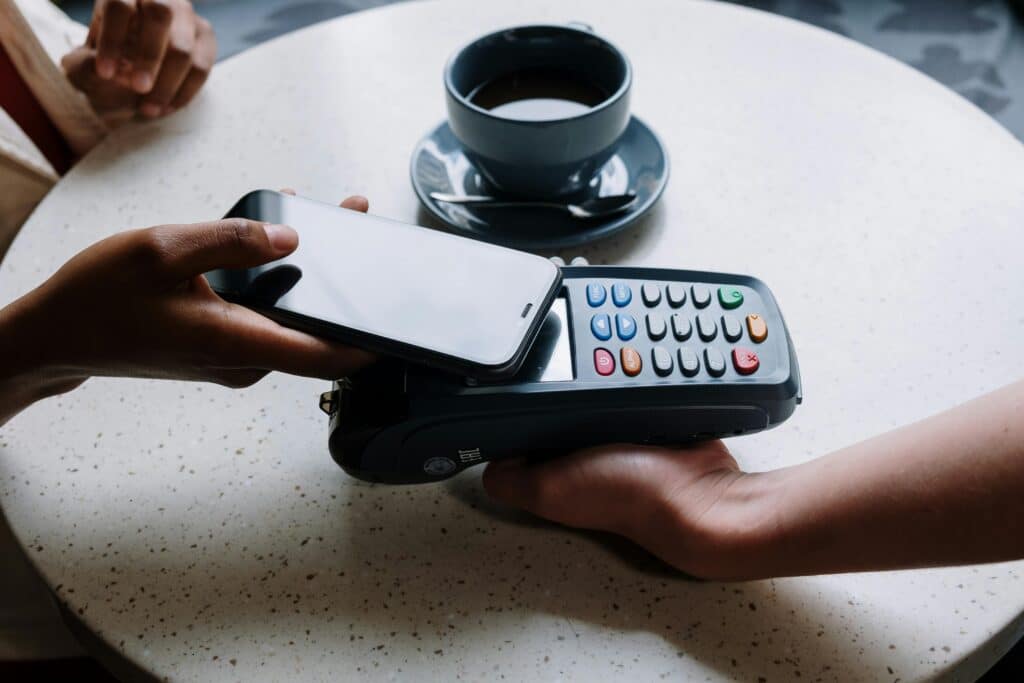
Physical cash still works everywhere, but your phone handles payments faster and more securely at the World Cup. Set up before you leave:
For the USA:
- Apple Pay / Google Pay — accepted at most stadium vendors, restaurants, and retail in all 11 US host cities
- Uber / Lyft — ensure your payment method is saved and working. Download both apps; availability varies by city
- Venmo or PayPal — useful for splitting costs with travel companions
For Mexico:
- Uber — widely available in Mexico City, Guadalajara, and Monterrey and often more reliable than street taxis
- Cabify — strong alternative to Uber in Mexico
- Cash (Mexican Peso) — many smaller vendors and markets are cash-preferred. Withdraw from ATMs (use Cirrus/Maestro network); notify your bank before departure
For Canada:
- Uber / Lyft — both operate in Toronto and Vancouver
- Apple Pay / Google Pay — widely accepted across both Canadian host cities
- Cash (Canadian Dollar) — less essential than in Mexico, but useful for transit cards and small vendors
Travel card tip: A no-foreign-transaction-fee card (Revolut, Wise, Charles Schwab) saves 2–3% on every transaction across all three countries. Set up before departure.

Pay in local currencies and avoid high exchange fees while traveling across North America during the World Cup.
➡ Best travel cards for the World Cup: PrepYourTrip Travel Cards Guide
Step 5: Install Your Key Apps Stack Before Departure
Do all app downloads on home Wi-Fi — not at the airport or on roaming data.
Essential apps (install before departure):
| App | Purpose | Countries |
|---|---|---|
| FIFA Official App | Match tickets. scores. stadium maps | All 3 |
| Google Maps (+ offline downloads) | Navigation | All 3 |
| Uber | Ride-hailing | USA + Mexico + Canada |
| Free calls and messaging | All 3 | |
| Google Translate | Translation (offline Spanish pack) | Mexico |
| XE Currency | Currency conversion (MXN. CAD. USD) | All 3 |
| Airalo / Saily / Holafly app | Manage your eSIM. monitor data. top up | All 3 |
| Your airline's app | Boarding passes. flight alerts | All 3 |
| Booking.com / Airbnb | Accommodation confirmation access | All 3 |
Download the Google Translate offline Spanish language pack (approximately 40–60 MB) before arriving in Mexico. Mexico City in particular sees millions of international visitors who don't speak Spanish — having offline translation is genuinely useful for menus, street signs, and stadium staff interactions.
➡ Full app-by-app breakdown: Best apps for the World Cup 2026
At the Stadium: How to Use Your Phone Effectively

Getting In: Digital Ticket Entry
- Open the FIFA app before you join the queue — load your ticket at your hotel or when you arrive in the stadium precinct (before network congestion hits)
- Screenshot your ticket QR code and keep it in your camera roll as backup
- Brightness to maximum — turnstile scanners need a bright, high-contrast display to read your QR code
- Disable any screen protector filters (blue light filters or automatic brightness reductions) that might reduce contrast
- Do not let your phone die — a dead phone with your only ticket on it is a match-day disaster. Carry a portable power bank (10,000 mAh is sufficient for a full match day)
During the Match: What Your Phone Is For
- Stadium maps for finding your section, toilets, and food vendors (use offline maps — loaded before entry)
- WhatsApp group updates with friends at different seats
- Photography — but consider the battery: video drains significantly faster than photos
- FIFA app live match data (lineups, stats, goals) — works even on congested networks as it's low-bandwidth
After the Final Whistle: The Most Critical 10 Minutes
The post-match period is when your phone matters most and networks are most strained. Prepare before kick-off:
- Pre-book your Uber/Lyft pickup with the “Schedule a Ride” feature before the match starts — this locks in a non-surge price and a guaranteed driver
- Screenshot your hotel address including the full postcode — for showing taxi drivers or when GPS fails
- Agree on a meeting point with your group before the match — the stadium exit is not a practical meeting point for 80,000 people
- Download the next day's transport map before entering the stadium while you still have good connectivity

Crossing Borders: Using Your Phone Between Countries
With a North America regional eSIM, your phone handles border crossings automatically — no SIM swap, no plan change, no action required. The plan simply switches to the local network (T-Mobile USA → Rogers Canada, for example) as you cross.
What to do before crossing:
- Confirm your eSIM plan covers the next country (it does, if you bought a North America regional plan)
- Download offline maps for the new city/country before crossing (do it at your current hotel)
- Download the Google Translate offline language pack if moving into Mexico (Spanish)
What not to do:
- Don't assume your hotel's Wi-Fi will be fast enough to download city maps on arrival — pre-download everything
- Don't use your home SIM for navigation while crossing — this triggers roaming charges even for a few minutes of data use
➡ How to stay connected without roaming fees
Battery Management: Keeping Your Phone Alive All Day
A full match day — hotel to stadium, 90 minutes of match, stadium to bar or hotel — can easily drain a modern smartphone twice. Battery is one of the most underestimated parts of using your phone at the World Cup 2026: your digital ticket, navigation, and communications all depend on it. Take this seriously.
Battery essentials:
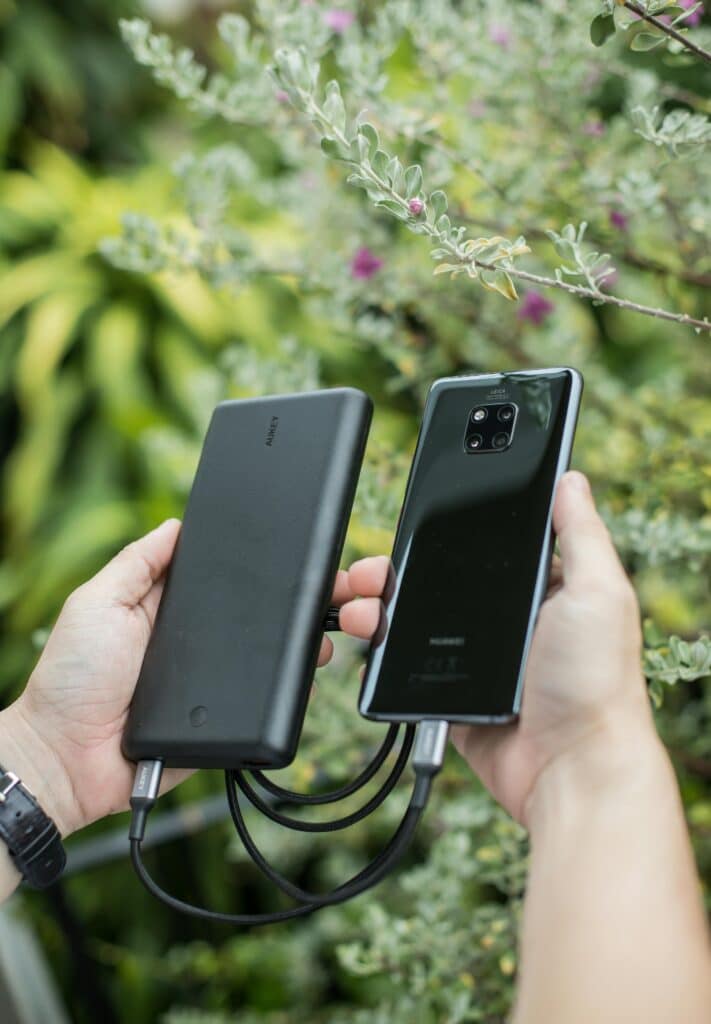
- Portable power bank (10,000 mAh minimum): Enough to fully charge most modern smartphones once. 20,000 mAh provides two full charges — enough for the longest days.
- Lower screen brightness inside the stadium to extend battery between charges
- Close background apps — streaming apps and social media platforms running in the background drain battery rapidly
- Enable Low Power Mode (iOS) or Battery Saver (Android) during the match if you're below 30% — it disables background app refresh while keeping core functions active
Plug adaptor: The US uses Type A/B sockets (standard two-pin flat). Mexico uses the same. Canada also uses Type A/B. If you're coming from Europe, Asia, or Africa, bring a universal adaptor.
Protecting Your Phone at the World Cup
Crowded fan zones, stadiums, and public transport create opportunistic theft conditions. Basic precautions:
- Use a wrist lanyard or crossbody phone holder in crowded fan zones — not a back pocket
- Enable Find My iPhone / Google Find My Device and ensure it's linked to a trusted email you can access from any browser
- Take a photo of your IMEI number (dial *#06# on any phone) — needed for insurance claims and network blocking if stolen
- Back up your photos daily to iCloud or Google Photos over hotel Wi-Fi — losing your phone shouldn't mean losing every match photo
If your phone is lost or stolen during the tournament, having travel insurance that covers electronics can make a significant difference. It's worth arranging before departure — not after something goes wrong.

Travel with extra peace of mind during the 2026 World Cup with coverage for medical emergencies, delays, and unexpected travel issues across Canada.
Frequently Asked Questions
Do I need a printed ticket or does the FIFA app work for stadium entry?
Digital tickets via the FIFA Official App are the primary entry method for World Cup 2026. Physical ticket printing may be available as a backup option depending on your ticket type — check your specific ticket confirmation for entry options. Always screenshot your digital ticket QR code as a backup regardless.
What if my phone dies before I can enter the stadium?
A dead phone with your only match ticket is a serious problem. Carry a power bank on every match day — a 10,000 mAh power bank is sufficient for a full day. If your phone does die at the venue, contact the stadium's fan services desk; FIFA has provisions for verifying digital ticket ownership via your booking reference number and ID.
Will Apple Pay and Google Pay work at World Cup stadiums?
In the USA and Canada, contactless payments via Apple Pay and Google Pay are very widely accepted — including at most stadium concession stands. In Mexico, acceptance is growing but less universal; some vendors prefer cash. Carry a small amount of Mexican Peso as backup for stadium food and drinks.
Can I use my phone as a mobile hotspot for travel companions?
Yes, most eSIM plans from Airalo, Saily, and Holafly enable hotspot sharing. One person's 20 GB plan shared among a group of 3–4 is significantly cheaper than everyone buying individual plans. Agree on a data usage budget per person to avoid draining the plan before the tournament ends.
Do I need to learn Spanish for Mexico host cities?
Not fluently, but the Google Translate offline Spanish pack (download on Wi-Fi before arrival) is genuinely useful in Mexico City, Guadalajara, and Monterrey. Download it before you cross the border so it works without data. Stadium signage will be bilingual (Spanish/English), but many restaurants, markets, and transit staff will interact primarily in Spanish.
How much mobile data do I actually need for the World Cup?
It depends on how you use your phone. Navigation and messaging use very little — a few hundred MB per day. Streaming video, posting reels, or using your phone as a hotspot for others can burn through several GB per match day. We'd recommend a minimum of 15–20 GB for the full tournament if you're the only person on the plan; more if you're sharing. Download offline maps and translate packs in advance to keep daily usage low.
What happens if I lose my phone during the tournament?
First: make sure Find My iPhone or Google Find My Device is set up before you leave home. If your phone is lost or stolen, contact your eSIM provider immediately to suspend the plan. Keep a note of your booking reference number and email address used for FIFA tickets — you'll need these to verify ownership at the fan services desk. Having travel insurance that covers phone theft is worth considering before departure.
Final Thoughts
Using your phone at the World Cup 2026 well is the thread that holds the whole trip together — from the moment your ticket loads at the turnstile to the Uber you book on the way home. Most of the problems fans run into on match day are avoidable with a bit of preparation done at home: the right eSIM set up before departure, offline maps downloaded city by city, tickets screenshotted, and a power bank in your bag.
The one thing worth repeating: do everything on home Wi-Fi. Downloading city maps, installing apps, setting up payment methods — all of it is faster, cheaper, and less stressful before you fly. Arriving in New York or Mexico City and scrambling to sort your phone on congested airport Wi-Fi is exactly the situation this guide is meant to prevent.
- Best apps for the World Cup 2026 → Full breakdown of every app in the recommended stack
- How to stay connected without roaming fees → eSIM setup, carrier options, step-by-step guide
- How much data do you need? → Per-activity data calculator
- Best eSIM for World Cup 2026 → Provider comparison with pricing
- World Cup 2026 Travel Guide → Complete World Cup 2026 Travel Guide
Add your first comment to this post